

Animation
In flux The animation system is actively developed. Steps may differ slightly in recent builds.
Animate a block
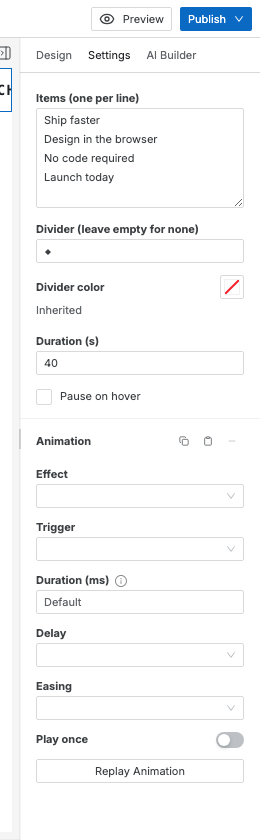
Section titled “Animate a block”- Select a block on the canvas.
- In the right sidebar, open the Settings tab.
- Scroll to the Animation section at the bottom.
- Choose an Effect from the dropdown (e.g. Fade In Up).
Optionally set a Trigger (e.g. On scroll into view), Delay, and Easing.
Available effects
Section titled “Available effects”| Effect | Description |
|---|---|
| Soft Reveal Up (default) | Gentle fade + subtle upward drift — used by the bulk animate action |
| Fade In | Opacity 0 → 1 |
| Fade In Up / Down / Left / Right | Fade + translate |
| Zoom In / Zoom In Up | Scale + opacity |
| Slide In (4 directions) | Translate only |
| Rotate In | Rotate + opacity |
| Bounce In | Overshoot spring |
| Spin (loop) | Continuous rotation |
| Pulse (loop) | Continuous scale pulse |
Copy & paste animation
Section titled “Copy & paste animation”To apply the same animation to multiple blocks:
- Configure the animation on one block.
- In the Settings tab header, click Copy animation (the copy icon).
- Select another block.
- Click Paste animation (the clipboard icon).
Use the Clear animation (minus icon) button to remove the animation from a block.
Site-wide animation defaults
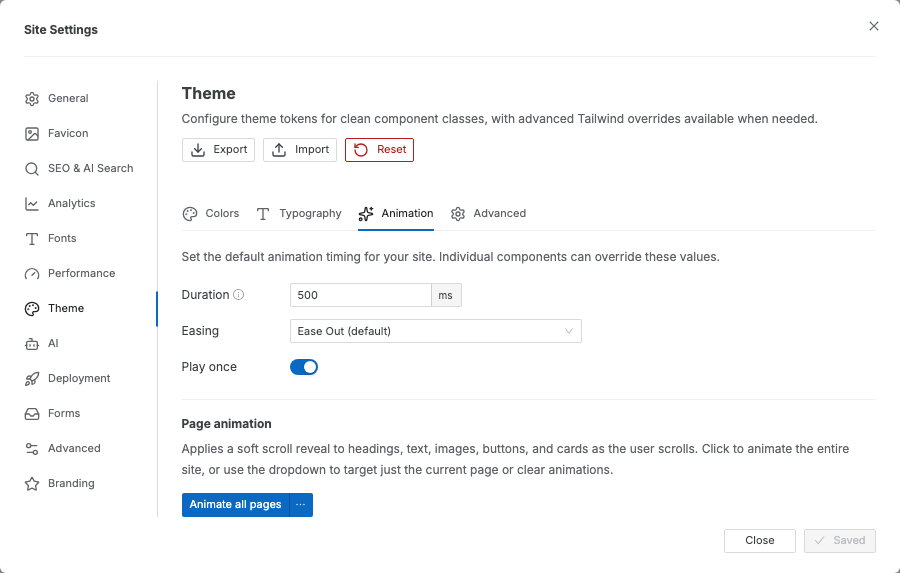
Section titled “Site-wide animation defaults”Set the default duration, easing, and once behavior in Settings → Theme → Animation. Any block you drop onto the canvas inherits these defaults until you override them per-block.
- Duration — how long the animation plays (e.g.
500ms) - Easing — timing function (
ease-out,ease-in-out, or a customcubic-bezier(…)) - Once — when enabled, the animation plays once per page load; disable to replay on every scroll re-entry
Bulk animate a page or site
Section titled “Bulk animate a page or site”The Page animation section (at the bottom of Settings → Theme → Animation) lets you apply a consistent scroll reveal to every eligible element in one click, without configuring each block individually.
Clicking Animate all pages opens a confirmation dialog, then applies a Soft Reveal Up scroll-triggered animation to all eligible elements across every page in your site. The global animation duration is also set to 900 ms with a smooth easing curve.
Use the dropdown arrow on the right side of the button to access the less-frequent actions:
| Action | What it does |
|---|---|
| Animate current page | Applies the soft reveal only to the page you are currently editing — useful for previewing before committing site-wide. |
| Clear this page | Removes all animations from the current page only. |
| Clear all pages | Removes all animations across every page in the site. |
What gets animated
Section titled “What gets animated”The bulk action targets meaningful content elements — headings, paragraphs, buttons, links, images, galleries, cards, blockquotes, and badges. It skips:
- Navbars and footers
- Layout containers (rows, columns, grids)
- Spacers, dividers, and decorative elements
- Hidden elements
Stagger timing
Section titled “Stagger timing”Eligible elements animate with a short, staggered delay so content ripples in rather than appearing all at once. The stagger is kept deliberately small and local so the page stays snappy — it never accumulates into a long wait:
- Rows and stacks of simple items (a logo strip, a list, a heading with its subtext) sweep one after another — the first has no delay, then each adds 100 ms (1st
0, 2nd100 ms, 3rd200 ms, …). - Repeated units that contain several elements (a project card, a stat block) each animate as their own quick internal ripple, and the units reveal in parallel — so a grid of cards doesn’t pile up into a growing delay.
- Delays are capped at 800 ms and reset per unit, so later content (and later sections) never lag noticeably behind earlier ones.
Because most bulk-animated elements also trigger on scroll into view, each one reveals as you scroll to it — the stagger just adds a subtle ripple on top.
Delays are applied per element, so reused symbols keep their own independent timing instead of all sharing one value.
Progress feedback
Section titled “Progress feedback”For pages with many elements, a status message is shown while the operation runs (e.g. Animating all pages…). All changes from a single bulk action are grouped into one undo step, so Ctrl/Cmd + Z reverts the entire operation at once.
Block is invisible after paste — the animation may have started in an opacity:0 state and not replayed. Click away and back to re-trigger the animation, or use Clear animation and re-apply.
Animation plays in the editor but not in preview — some entrance effects require the trigger to fire. In preview mode, scroll the block into view to confirm scroll-triggered animations work.
Bulk animate skipped a block I expected to animate — the action only targets specific content types (headings, paragraphs, buttons, images, cards, etc.). Wrapper divs, layout columns, and decorative elements are intentionally skipped. Select the block manually and set its animation in the Settings tab to animate it individually.
“Animate all pages” button is greyed out — the button is disabled while another animation operation is already running. Wait for the current operation to finish.