

Components
Component library
Section titled “Component library”Open the Components tab (the puzzle-piece icon, first in the left sidebar) to see all available components grouped by category:
| Category | Examples |
|---|---|
| Layout | Container, Div, Row, Column, 50/50, 3 Cols |
| Typography | Heading, Paragraph, List, Blockquote, Badge, Text link, Divider |
| Navigation | Navbar, Breadcrumbs, Button |
| Interactive | Typed Text, Dark/Light switch, Gallery, Lightbox Image |
| Media | Image, Video, Audio, Embed |
| Content | Card, Card Group, Card Media, Card Overlay, Icon |
Forms are not a category here. Form elements are fully editable once they are on the page, but you add them as a block, with a template, or by importing HTML — see Forms.
The Icon component lets you add decorative or accessible icons to buttons, cards, navigation, and other page content. Swebsy’s editor interface uses free/open icons, and website icons use free icon packs so you do not need a FontAwesome Pro subscription to build or export sites.
The icon picker includes stroke icons for general UI symbols plus free FontAwesome solid, regular, and brand icons. Use brand icons for social links, community links, repository links, and other logo-style destinations.
Add a component
Section titled “Add a component”- Open the Components tab.
Find the component you want — use the search box or scroll through categories.
Click the component to add it after the selected element (or at the end of the page if nothing is selected). To place it somewhere specific, drag it onto the canvas instead: move over the page until the drop highlight appears, then release.
Drop between existing components to insert at that position, or drop inside components that accept children, such as containers, rows, and cards.
Select and edit a component
Section titled “Select and edit a component”- Hover a component to see its name tag; click to select it. Hold Shift and click to select several.
- Double-click text inside a component to enter inline edit mode.
- Use the Layers panel when the element is covered, deeply nested, or hard to click directly on the canvas.
- Use the Design tab in the right sidebar to change spacing, colors, and layout.
- Use the Settings tab to change component-specific properties (image src, link href, …).
Move a component
Section titled “Move a component”You can move a component in three ways:
- On the canvas — click and drag the component itself to a new position.
- With the drag handle — on a touch screen, select the component, then drag it by the move handle in the toolbar above it.
- From the Layers panel — open the Layers tab and drag the component layer above, below, or inside another layer.
Duplicate or delete a component
Section titled “Duplicate or delete a component”Right-click the component on the canvas to open its menu:
- Duplicate (
⌘D/Ctrl+D) — creates a copy immediately below the component - Edit code — opens the component’s HTML in the code editor
- Delete (
⌫) — removes the component (can be undone with Cmd/Ctrl+Z)
Press Escape to close the menu without changing the selection. On a touch screen, the same actions are in the toolbar above the selected component.
Toggle visibility
Section titled “Toggle visibility”In the Layers tab, hover over any component row to reveal an eye icon on the right. Click it to hide or show that component on the canvas. Hidden components are not removed — they are simply invisible while you work, and they are still included in the exported site.
This is useful for temporarily hiding a section so you can focus on what’s behind it, or for comparing layouts with and without a specific element.
Nest components
Section titled “Nest components”Some components are containers (Container, Row, Column). Drag other components inside them to build complex layouts. The Layers tab shows the nesting hierarchy.
Change a Div’s tag
Section titled “Change a Div’s tag”A Div has no meaning on its own. Screen readers, search engines, and AI crawlers rely on the tag to tell the parts of a page apart. Changing the tag leaves the design as it is; only what the element means changes.
- Select a Div.
- Open the Settings tab in the right sidebar.
- Pick a Tag:
- Main content for the part that is unique to this page. Use one per page.
- Header, Footer, or Navigation for the top bar, bottom bar, or menu.
- Section for one topic within the page, such as Features or Pricing.
- Sidebar (aside) for related content placed alongside the main content.
- Article for a piece that makes sense on its own, such as a blog post.
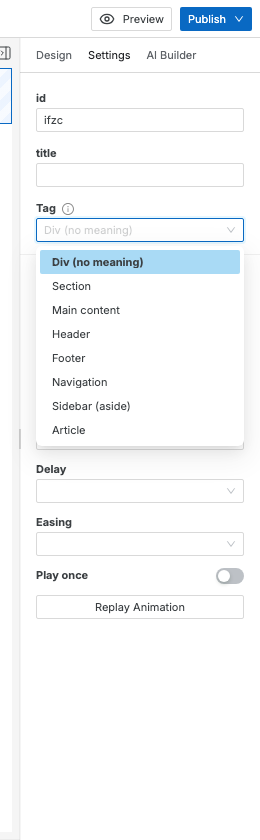
A common layout is navbar, then Main content wrapping every section, then footer. Keep the navbar and footer outside Main content.
To wrap existing sections, select them in the Layers
panel and press Ctrl+G (⌘G on Mac). This puts them in a new Div
without touching their styles. Then set that Div’s Tag to Main content. A
connected AI agent does the same in one step with
swebsy_wrap_section.
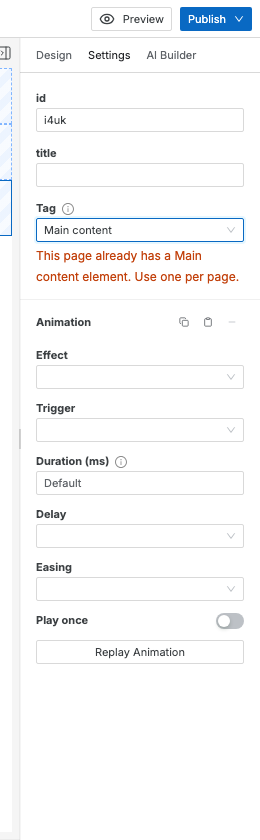
Swebsy warns you about two common mistakes but never blocks them: a second Main content on the same page, and a Main content placed inside a header, footer, navigation, sidebar, or article.
Component won’t drop in the right position — try releasing it over the Layers tab instead of the canvas to control exact nesting.
Can’t select a component inside another — click the outer component first, then click the inner one. Or use the Layers tab to select by name.
Not sure which nested level is selected — use the Layers panel to verify whether you selected the Container, Row, Column, or content element before editing styles.