

Media & assets
Media files are stored with your project in the browser and bundled into backups, exports, and deployments. Use the Assets tab to upload or reuse files, and use Media components when you want to place them on the canvas.
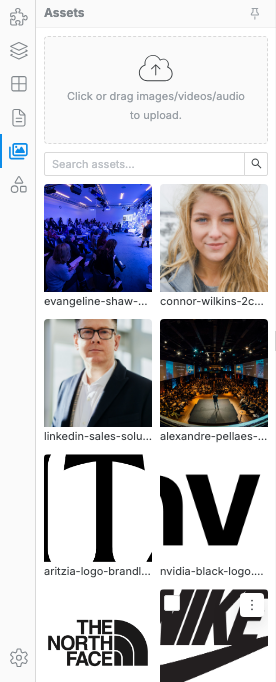
Upload or add media
Section titled “Upload or add media”- Open the Assets tab in the left sidebar.
- Click Upload, or drag files anywhere onto the panel.
Click an asset to add it to the page, after the selected element (or at the end of the page if nothing is selected). You can also drag it onto the canvas.
Use the card’s ⋯ menu to preview, rename, download, or delete an asset. Use Search assets to find one by name.
Place media on the page
Section titled “Place media on the page”Open the Components tab and drag a Media component onto the canvas:
| Component | Use it for |
|---|---|
| Image | Local uploads or external image URLs. Double-click to replace. |
| Video | Hosted video files with browser controls. |
| Audio | Hosted or uploaded audio with browser controls. |
| Embed | Iframes such as maps, YouTube embeds, calendars, or widgets. |
| Gallery | Multiple images with layout and lightbox-style controls. |
| Lightbox Image | A single thumbnail that opens a larger image. |
For images, fill in Alt Text in the Settings tab. Alt text is used by screen readers and should describe the meaningful content of the image.
To place a decorative image behind a section or container, select the element and add an Image layer under Design → Fill → Background. The Backgrounds guide covers image sizing, positioning, repeating, attachment, blending, and combining images with gradients or patterns.
Replace an image
Section titled “Replace an image”You have two replacement paths:
- Use the asset picker — double-click the image on the canvas. The Select media popup opens with the current image ringed. Click another image, or upload a new one with Upload or by dropping it on the popup.
- Use a direct URL — select the image, open the Settings tab in the right sidebar, and paste an image URL into Source URL.
After replacing the image, update Alt Text and Title if the image meaning changed.
Image size on the published site
Section titled “Image size on the published site”Uploaded images are stored exactly as you gave them, at full size and full quality, and by default they are published that way too. Swebsy can re-encode them when you export or deploy — see Optimize images for the presets and what they do.
Compression happens at export time and leaves your stored files intact, unless you turn on Replace originals with compressed images. Then each image is compressed once and the compressed copy replaces the original in the asset gallery — permanently.
If one image looks wrong under compression — fine gradients and screenshots of text are the usual suspects — open it in the asset gallery and turn on Keep original quality. That image is then published untouched while everything else is still optimized. The toggle only appears on PNG and JPEG images, because those are the only formats Swebsy re-encodes.
Re-encoding also strips EXIF metadata, including the GPS coordinates a phone camera writes into a photo, and converts the image to sRGB.
Lightbox images
Section titled “Lightbox images”Lightbox Image is a special interactive component. It appears in the Interactive category, not the Media category, and it opens the larger image only in Preview mode or on the exported/deployed site.
Use the two image fields differently:
- Thumbnail — the image visitors see on the page. Double-click the thumbnail on the canvas to choose or replace it from the asset picker.
- Full-size (optional) — the larger image shown when the visitor opens the lightbox. Select the Lightbox Image, open the Settings tab, and set Full-size (optional) there.
If Full-size (optional) is empty, the lightbox opens the thumbnail image. Set it when you want a smaller cropped thumbnail on the page but a larger or higher-resolution image in the preview modal.
To test it, switch to Preview mode and click the thumbnail. Clicking it in the editor selects the component instead of opening the lightbox.
Image does not appear after export — make sure the image was uploaded to
Assets or uses a reachable https:// URL.
External video does not play — the remote server must allow the browser to load the video file. If not, upload the file to your own host or use an embed from the video provider.
Backup file is too large — remove unused assets and compress large images before exporting the project backup.