

Deploy to Cloudflare Pages
Create an API token
Section titled “Create an API token”In the Cloudflare dashboard, select the account you want to deploy under.
Go to Manage Account → Account API Tokens and click Create Token.
- Give the token a name, such as
Swebsy Pages deploy. Add a permission policy for Cloudflare Pages with Edit access.
Optional: if Swebsy will help attach a custom domain, add DNS → Edit access scoped to the zone that hosts the domain.
- Click Continue to summary → Create Token, then copy the token.
One-time setup in Swebsy
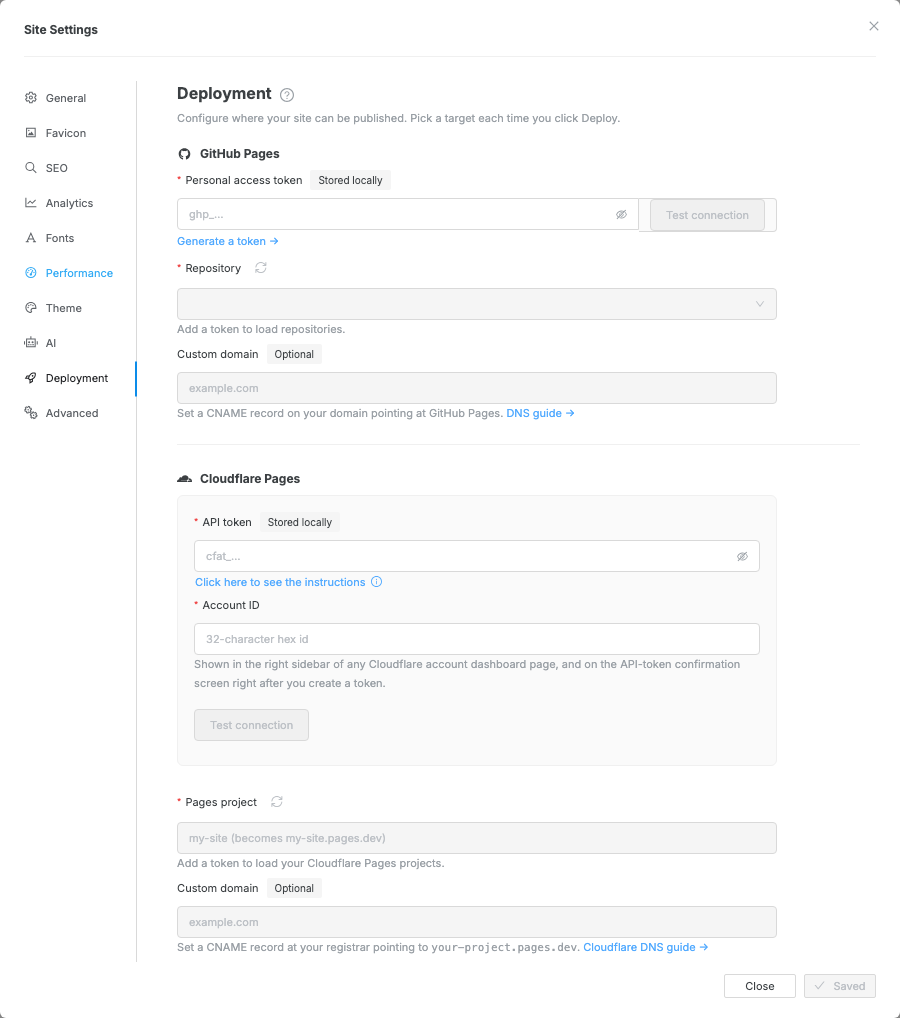
Section titled “One-time setup in Swebsy”Click Publish at the right of the topbar and choose Cloudflare Pages — until it is set up, that opens its setup in Settings → Deployment.
- Paste your API token.
Paste your Account ID from the Cloudflare dashboard sidebar or the token confirmation screen.
Pick an existing Pages project from the list. If you do not have one yet, create it in Cloudflare Pages first, then refresh the project list in Swebsy.
- Optionally enter a custom domain.
- Click Save.
Deploy
Section titled “Deploy”- Click Publish at the right of the topbar.
If Cloudflare Pages is the site’s host, click Publish on its card at the top of the menu: it publishes straight away. Otherwise click Cloudflare Pages in the list below it.
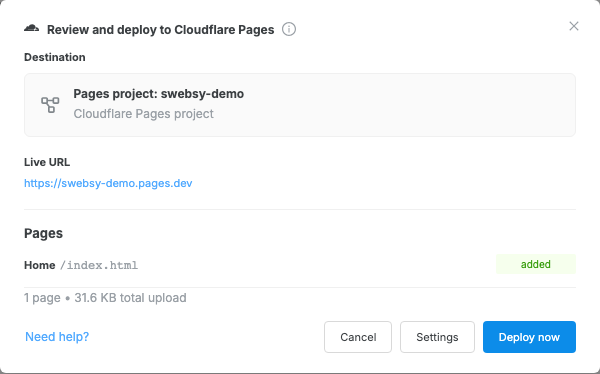
From the list, or when there is a warning, the Deploy review modal opens, showing the target project, live URL, pages, upload size, and any warnings.
- Click Deploy now.

Custom domain
Section titled “Custom domain”If you entered a custom domain in Swebsy, make sure its DNS points at the Pages project:
- Open your Pages project → Custom domains → Add a custom domain.
- Follow the DNS instructions Cloudflare provides.
“Authentication error” — your token may have expired or have insufficient permissions. Create a new token with Account → Cloudflare Pages → Edit permission.
Project not found — create the Pages project in Cloudflare first, then return to Settings → Deployment, refresh the Pages project list, and pick it again.
Large site times out — very large sites (>50 pages, many images) may hit Cloudflare’s Direct Upload limits. Try reducing image sizes before deploying.
Single file upload fails — Cloudflare Pages rejects individual site assets larger than 25 MiB. Compress the file or host it outside the Pages deploy.