

Publish with Swebsy Hosting
Swebsy Hosting publishes your site to yourname.swebsy.site in one click.
Unlike GitHub Pages or Cloudflare Pages, there is no third-party account to
create and no API token to paste — SSL, the CDN, forms, custom domains, and
rollback are handled for you in Swebsy.
Compared with the other targets:
| Swebsy Hosting | GitHub Pages | Cloudflare Pages | |
|---|---|---|---|
| Setup | Sign in, save to cloud, pick a name | GitHub repo + token | Cloudflare project + account ID + token |
| Management | Entirely inside Swebsy | GitHub and Swebsy | Cloudflare and Swebsy |
| Rollback | Built in, one click | Through git history | Through Cloudflare |
| Custom domain | Built in | Configure with GitHub and your DNS | Configure with Cloudflare and your DNS |
| Swebsy Forms inbox | Included | Not available | Not available |
Pick your address
Section titled “Pick your address”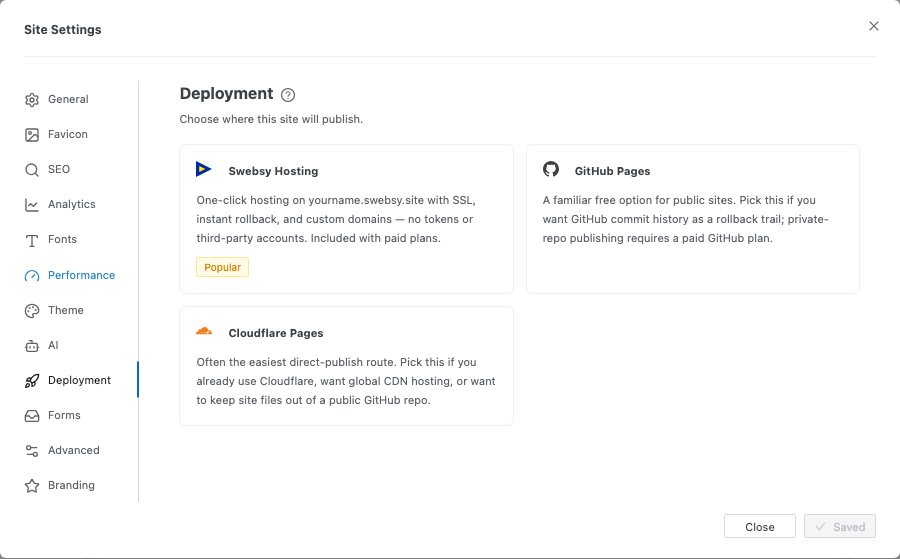
- Click Settings in the topbar, then open the Deployment tab.
Select Swebsy Hosting as the deployment provider. If this site already publishes somewhere else, click Change on the provider row first.
Type the subdomain you want, or click use a suggestion from your site title.
- Click Check.
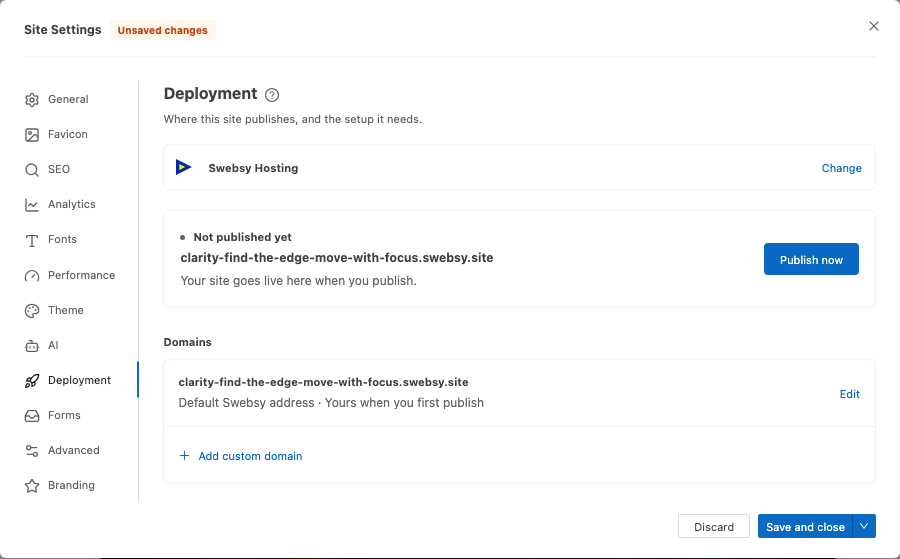
Subdomains are 3–63 characters, lowercase letters, numbers, and inner hyphens.
A short list of names is reserved (things like www, api, admin,
support, and swebsy itself) to keep published sites from impersonating
Swebsy infrastructure.
Publish
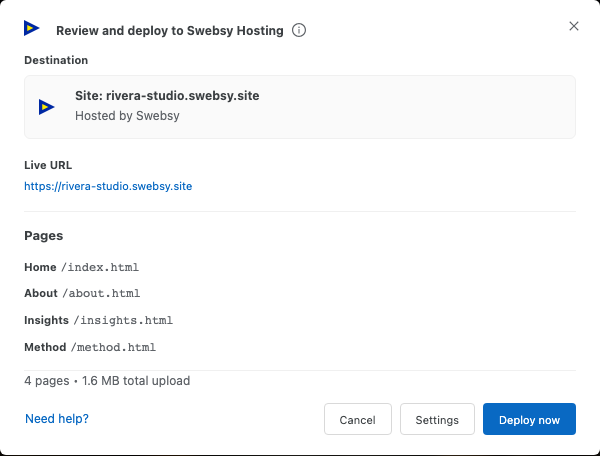
Section titled “Publish”Click Publish now in the Deployment tab, or close Settings and choose Deploy → Deploy to Swebsy Hosting from the topbar.
- The Deploy review modal opens, showing what will be uploaded.
- Click Deploy now.

Published sites count against your plan: 3 on Starter, 10 on Pro, 1 during the trial. Published files also count toward your storage limit — see Plans & billing.
A published site may contain up to 500 files, each up to 10 MB. Only web file types are accepted: HTML, CSS, JavaScript, images, fonts, common audio and video, PDF, and the usual metadata files. Archives and executables are rejected.
Roll back to a previous version
Section titled “Roll back to a previous version”The three most recent deployments are retained. Earlier ones appear under Previous versions with the time they were published and their file count.
- Find the version you want under Previous versions.
- Click Roll back, then confirm.
The live site switches immediately, and the version you rolled away from stays in the list so you can roll forward again. Nothing is re-uploaded — the files are already there, which is why this is instant.
Take a site offline
Section titled “Take a site offline”Click Unpublish, then confirm. Visitors see a “site offline” page.
Your deployments are kept and your subdomain stays reserved to you, so republishing later is one click from Previous versions — no re-upload and nobody can take the name in the meantime. Those retained versions continue to count toward storage; unpublishing does not reclaim their bytes.
Your own domain
Section titled “Your own domain”Once a site is published, use the Custom domain panel below the deployment list to serve it from a hostname you own. See Custom domains.
“Sign in to publish with Swebsy Hosting” — sign in from the Swebsy home page, then reopen Settings.
“Save this site to the cloud first” — Swebsy Hosting publishes your cloud copy. Click Save to Cloud in the Studio topbar, then come back.
Publish button is disabled — pick and check a subdomain first.
“This subdomain is already taken” — someone else is using it. Names are first come, first served across all Swebsy accounts.
Publishing refused with a plan message — you are at your plan’s published-site limit, or storage is full. Unpublishing another site can free a published-site slot, but retained deployments still count toward storage; remove unused project assets or upgrade to free capacity.
Site went offline on its own — if your subscription ended, published sites go offline when the 30-day grace period closes. The deployments are retained; resubscribe and republish from Previous versions.