

Symbols
Symbols let you turn a selected canvas element into reusable content. Use them for repeated sections such as navbars, footers, CTA strips, pricing cards, logos, and other elements that should stay consistent across pages.
This is different from Blocks. Blocks are templates you insert once. Symbols are reusable elements you can insert many times and keep in sync.
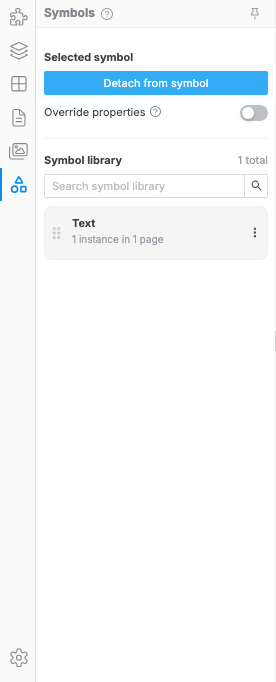
Create a symbol
Section titled “Create a symbol”- Select one component or section on the canvas.
- Open the Symbols tab in the left sidebar.
- Click Create symbol.
Use clear names for symbols. For example, rename a shared footer to
Main footer instead of leaving it as Symbol.
Insert symbol instances
Section titled “Insert symbol instances”After a symbol exists, you can reuse it in two ways:
- Drag from the Symbol library — drag the symbol card onto the canvas and drop it where you want the instance.
- Use the actions menu — open the symbol’s three-dot menu and choose Insert Instance.
Each inserted copy is a symbol instance. By default, instances stay linked to the main symbol.
Edit the main symbol
Section titled “Edit the main symbol”Select the main symbol on the canvas and edit it like a normal component. Changes to the main symbol flow to linked instances.
Use this for content that should stay identical everywhere, such as:
- a site-wide navbar
- a repeated footer
- a shared CTA section
- a logo row
Override one instance
Section titled “Override one instance”Sometimes one page needs a local variation. Select a symbol instance and turn on Override properties in the Symbols tab.
With overrides on, that instance can have local changes without immediately following every property from the main symbol. Use overrides for small variations, such as a different button URL or page-specific label.
Detach a symbol
Section titled “Detach a symbol”Select a symbol or symbol instance and click Detach from symbol to make it a regular component again.
Detached content no longer receives updates from the main symbol, and edits to it no longer affect other instances.
Manage the symbol library
Section titled “Manage the symbol library”Use the Symbol library to:
- Search symbols by name.
- Insert Instance from the actions menu.
- Select Instances to find where a symbol is used.
- Rename symbols so the library stays readable.
- Delete symbols you no longer need.
Deleting a symbol detaches its existing instances before removing it from the library.
When to use Symbols
Section titled “When to use Symbols”Use a symbol when the same element appears in multiple places and should stay consistent.
Do not use a symbol for one-off content. For single-use content, edit the component or insert a Block instead.
I changed one instance and other pages changed too — you edited a linked symbol. Turn on Override properties for page-specific edits, or detach the instance before making it unique.
I cannot create a symbol — select a single canvas element first. Symbols are not created from multi-selection.
A deleted symbol still appears on the page — deleting from the library detaches existing instances; it does not delete the visible page content. Delete the detached components from the canvas or Layers tab if you no longer need them.