

Build a SaaS landing page with Claude Code and Swebsy
You’ve got a product. You need a page that explains it. This guide has Claude Code do the heavy lifting inside Swebsy, and when it’s done you still have a normal visual editor and real files you can host anywhere.
We’ll start from Pulsar, a developer-tool template. Everything in it is made up: the company names, the stats, the testimonials, the prices. Swap them out or delete them before you publish. Why start from a template at all? Reacting to a real layout is much faster than describing one from scratch.
Before you start
Section titled “Before you start”You need:
- Swebsy open in a desktop browser
- Node.js 20 or newer
- Claude Code with MCP support
No Swebsy account needed. Building and exporting locally is free. Claude Code’s own plan limits and charges still apply.
Be clear on one thing: this builds a marketing site. Your app’s login, database and checkout live somewhere else. The “Try the app” button just links there.
Register the bridge with Claude Code:
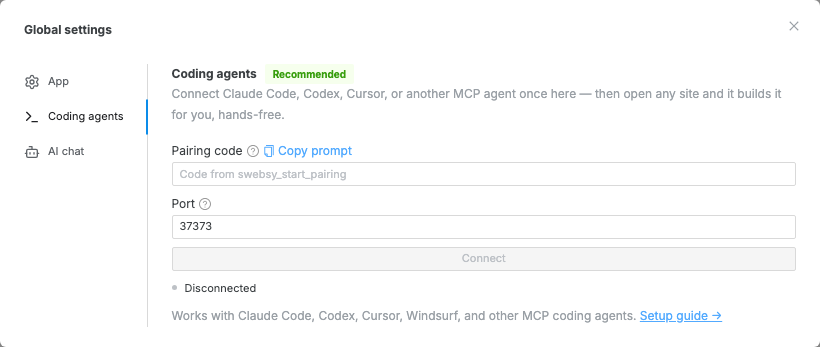
claude mcp add swebsy -- npx -y @swebsy/mcpThen pair it from Global settings → Coding agents in Swebsy. The full walkthrough is in the coding-agent setup reference.
Once you’re connected, ask Claude which project is open. If it names the wrong one, open the right site before you change anything.
1. Write the brief first
Section titled “1. Write the brief first”Do this before you ask for any design. Five minutes here saves an hour of “no, not like that.” Only write down things that are true:
Product: Relaynote (a fictional example).Audience: small support teams reviewing customer conversations.Problem: handover notes get scattered across several places.Offer: join a waitlist for a shared handover workspace.Primary action: open the waitlist form.Pages: Home, Product, Pricing, Contact.Tone: clear and practical.Proof available: three real product screenshots.Proof unavailable: customer logos, revenue claims, testimonials.Do not invent features, customers, prices, or performance numbers.For your product, replace every line. No pricing yet? Say “Pricing will be announced before launch.” A made-up pricing table is worse than none. Same with the offer: a waitlist isn’t a purchase, so don’t dress it up as one.
The last line matters most. Left alone, an agent will happily invent customers, features and numbers. Tell it not to.
2. Create the site and look around
Section titled “2. Create the site and look around”Open the template from the button at the end of this guide, or ask your agent:
List the installed Swebsy templates. Create a new site from Pulsar.Wait until that exact site is open and the editor is ready.Rename the internal project to Relaynote launch.Read its pages and summarize the current sections before editing.You get all of the template’s pages and content. Renaming the project only changes its name inside Swebsy. The public page title lives in SEO settings.
Keep the site ID Claude gives you. If you have another project with a similar name, it’s how you both know which one you mean.
3. Edit one section at a time
Section titled “3. Edit one section at a time”Start with the hero. Have the agent read the page first and find the heading, the paragraph under it and the main button. Then ask for one small, specific change:
On Home, rewrite only the hero for the brief above.Keep the existing layout and typography.Use the heading “Keep the next shift in the loop”.Explain the product in one sentence below it.Change the main action to “Join the waitlist”.Do not add customer logos, metrics, or new product features.Read the result back and capture a screenshot.Look at it on the canvas. Does the first screen say who this is for and what to do next? If not, fix that now. Everything below builds on it.
When something looks off, say what you see: “the supporting text is too wide on desktop”, “the heading wraps to five lines on mobile”. That works. “Make it premium” doesn’t. Nobody, human or agent, knows what that means.
4. Fill the page with things you can prove
Section titled “4. Fill the page with things you can prove”Each section should answer one question a visitor actually has:
| What the visitor wonders | What answers it |
|---|---|
| Is this for me? | A specific audience and problem |
| What does it do? | A short explanation and real screenshots |
| How would I use it? | Three concrete steps or one short demo |
| What can I use today? | Honest feature and availability details |
| What do I do next? | One action, the same everywhere |
| What might stop me? | Straight answers about setup, cost and limits |
Delete the template testimonials unless you have real ones. Remove or rename pages you won’t use. A nav link to an empty page is worse than no link.
You can jump into the visual editor any time. Claude and the canvas edit the same project, so fixing a typo doesn’t mean regenerating the page.
5. Check it on a phone, then click everything
Section titled “5. Check it on a phone, then click everything”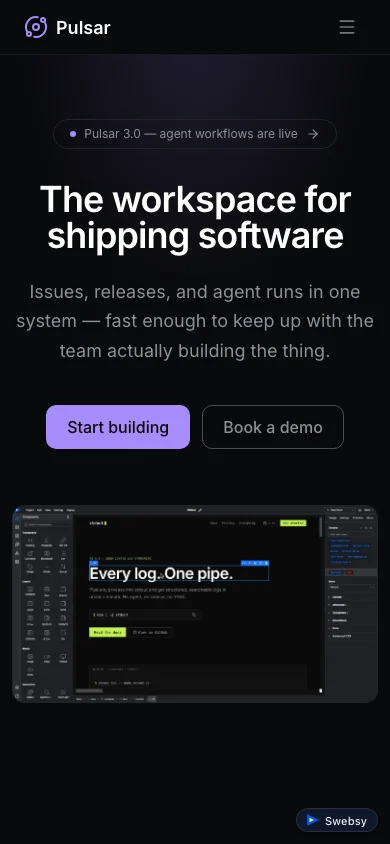
Look at the heading, menu, image crops, button labels and spacing. Can you read it without zooming? Use Preview to try anything interactive, then check again on the exported files.
A “Join the waitlist” button has to go somewhere. Wire it up with the waitlist guide before you call it done. App links need the real app URL. Kill any placeholder links, and any feature you don’t actually have.
6. Save a backup, then export
Section titled “6. Save a backup, then export”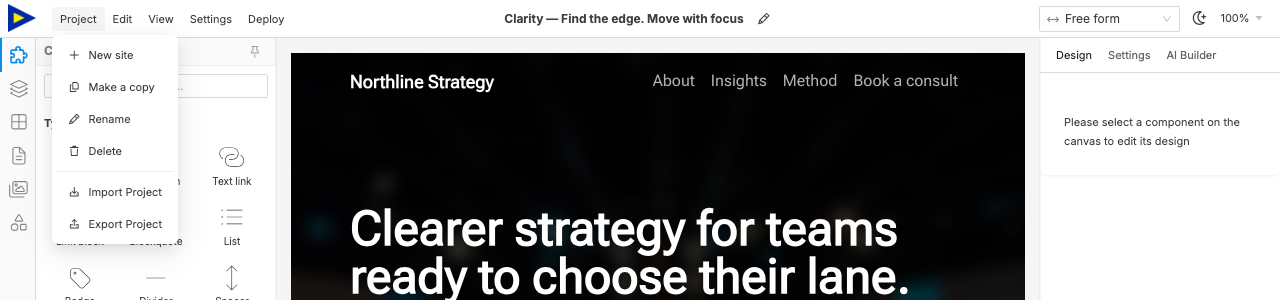
Two exports, two jobs:
- Project → Export Project is the editable backup. Import it later to keep working.
- Deploy → Export code is the website ZIP. That’s what you host.
Keep both.
Before you upload anything, unzip it and serve it with a local HTTP server. Click through the pages. Make sure images, fonts and the main button work. The multipage export guide has the full checklist.
If something goes wrong
Section titled “If something goes wrong”Claude edits the wrong page. Stop. List the pages, select the right one, and have it read the page before trying again.
Pairing fails. Swebsy and the bridge need to be on the same computer, and Studio has to stay open. Ask for a fresh pairing link. Don’t share pairing links with anyone.
It all looks generic. Go back to the brief. Generic input gets generic output. Give it real content, specific layout constraints and references you’re allowed to use. Change one section, look at it, then move on.
Claude promises something Swebsy can’t do. Check the product docs. No prompt adds a CMS or a payment backend to a static site.
After launch
Section titled “After launch”Export a fresh backup before any big edit. When the product changes, update the page: availability, screenshots, pricing, where the buttons go. An out-of-date launch page does more harm than a plain one that’s right.