

Project management
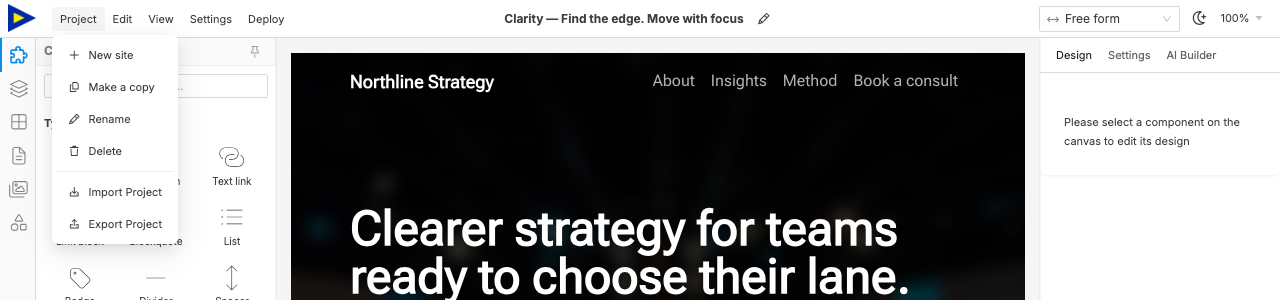
Swebsy projects are local-first: the Studio saves your site in your browser as you edit, and a free account can additionally keep a synced copy in your account. The Project menu is where you manage the project lifecycle: start a new site, make a copy, rename, delete, import a backup, or export a backup.
Create a project
Section titled “Create a project”From the dashboard, click New site, or Create your first site when the list is empty.
- Choose a template or start from a blank site.
- Wait for the Studio to open.
Each card shows its template in the mode it was designed in. Use Light | Dark at the right of the filters to see every template in light or in dark; click the picked mode again to go back to each template’s own design. This only changes the covers, not the site you create.
Inside the Studio, you can also open Project → New site to return to the new site flow.
Manage projects with ChatGPT, Claude or a coding agent
Section titled “Manage projects with ChatGPT, Claude or a coding agent”After you connect ChatGPT, Claude or a coding agent, it can manage local projects from either Home or Studio:
- discover installed templates
- create Swebsy’s standard blank project or import a template unchanged
- list saved projects newest-first without loading their page content
- open a project by its authoritative site ID
- rename the internal project name shown on Home and in the Studio topbar
Creating or opening a project navigates the paired browser tab. The agent must
wait for swebsy_status to report the expected siteId and
editorReady: true before it starts editing. Duplicate project names are
allowed, so the agent uses site IDs rather than names when selecting a project.
Agent-driven rename changes only the internal project name. It does not change
the SEO/public title. Copy, delete, and import remain explicit actions in the
Project menu; they are not exposed through the public MCP tools. Agents can
write a portable project backup with swebsy_export.
Rename, copy, or delete
Section titled “Rename, copy, or delete”Use Project → Rename when the site name shown in the topbar or dashboard is wrong. You can also click the pencil icon beside the site title in the topbar.
Use Project → Make a copy before risky edits, large AI changes, or design experiments. A copy is a separate local project, so you can keep the original unchanged while you test changes.
Use Project → Delete only when you are sure the project is no longer needed. Export a backup first if you may need the project again.
Back up and restore
Section titled “Back up and restore”A project backup is a JSON file that restores the editable Swebsy project. It is different from the exported website ZIP.
- Open Project → Export Project.
- Save the downloaded JSON file somewhere safe.
- To restore it later, open Project → Import Project.
- Select the JSON backup file and confirm the import.
Read Project backups for what is included, what is excluded, and why secrets are stripped from backup files.
ZIP export vs project backup
Section titled “ZIP export vs project backup”| Need | Use |
|---|---|
| Host the finished site | Publish → Download site (ZIP) |
| Publish with Swebsy Hosting | Publish menu |
| Deploy to GitHub Pages | Publish menu |
| Deploy to Cloudflare Pages | Publish menu |
| Keep an editable copy of the Swebsy project | Project → Export Project |
| Move the project to another browser or computer | Project → Export/Import Project |
| Send clean HTML, CSS, and assets to a developer or host | Publish → Download site (ZIP) |
| Save a restore point before large edits or browser cleanup | Project → Export Project |
The ZIP is the published website output. The backup JSON is the editor project. Keep both when a project matters: the ZIP for hosting, the JSON backup for future edits.
Local browser storage
Section titled “Local browser storage”Swebsy stores local project data in your browser. That means:
- projects are available on the same browser profile and device
- clearing site data can remove projects
- private browsing windows may not keep projects reliably
- another browser or computer will not automatically have your projects
Before you clear browser data, reset a browser profile, change computers, or hand work to someone else, export a project backup.
Recover on another browser or device
Section titled “Recover on another browser or device”- Open the original browser and project.
- Export a project backup with Project → Export Project.
- Move the JSON file to the new browser or device.
- Open Swebsy and use Project → Import Project.
- Open the imported project and verify pages, assets, and settings.
If the original browser data is already gone and you do not have a backup, the local project cannot be recovered.
I exported a ZIP but cannot edit it in Swebsy — the ZIP is the static website output. Use Project → Export Project to create an editable backup.
My project disappeared after browser cleanup — browser site data was likely removed. Restore from your latest project backup JSON.
Import replaced the wrong project — import overwrites the current project. If you still have the previous state in another tab, export it before closing.
The backup is large — uploaded assets are included in backups. Compress large images and videos before uploading them to keep backups smaller.