

Cloud sync
Cloud sync stores a copy of a project on Swebsy’s servers and keeps it in step as you work. It gives you an off-device backup, the same site on more than one machine, and it is the prerequisite for version history and Swebsy Hosting.
Sync is opt-in per site. A project stays entirely local until you save it to the cloud, and local editing never depends on the network.
Save a site to the cloud
Section titled “Save a site to the cloud”- Open the site in the Studio.
- Click Save to Cloud in the topbar.

That first save uploads the project and every image and file it uses. Later syncs only send what changed.
How automatic syncing behaves
Section titled “How automatic syncing behaves”Once a site is cloud-linked, Swebsy pushes changes in the background about 30 seconds after you stop editing. There is no Save button to remember.
Hover the status icon for the current state and the time of the last sync:
| Status | Meaning |
|---|---|
| Saved to cloud | The cloud copy matches this device |
| Syncing… | An upload is in progress |
| Sync failed — will retry | A push did not go through; the next idle save tries again |
| A newer version exists in the cloud | Another device pushed changes — see below |
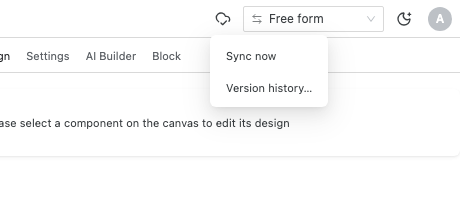
Click the icon for a menu with Sync now (push immediately) and Version history….
Working on a second device
Section titled “Working on a second device”Sign in on the other machine and open the Swebsy home page. Cloud projects that aren’t on that device appear under In your cloud with a Load onto this device button.
Resolving a conflict
Section titled “Resolving a conflict”A conflict means the cloud copy moved on while this device was editing. Swebsy never resolves this silently — you are always asked.
When you open a site that changed elsewhere, you are offered:
- Load cloud version — replaces this device’s copy with the cloud copy and reloads. Local changes made here since the last sync are lost.
- Keep this device’s copy — carries on locally. The next push raises the conflict below.
When a push finds a newer cloud copy, you are offered:
- Overwrite cloud copy — this device’s version wins and becomes the new cloud version. The version it replaces is recoverable from version history.
- Pause syncing — keeps the cloud version and stops pushing from this device. Use Sync now to resume when you have decided.
Images and files
Section titled “Images and files”Assets upload alongside the project and are stored by content, so the same image used on ten pages — or re-uploaded after a re-import — is stored once and counted once against your storage.
A single asset may be up to 25 MB. The project itself (the pages, styles, and settings, without assets) may be up to 5 MB, which is a very large site in practice.
Deleting a site
Section titled “Deleting a site”Deleting a site from My Sites removes the copy in this browser. The cloud copy is kept.
That is worth knowing before you delete a site to free up storage: it will not free any. To reduce storage, remove unused images from projects you keep. Unpublishing a hosted site takes it offline but retains its deployments, so it does not immediately reduce storage either.
To keep a site locally but stop pushing changes, choose Pause syncing at the next conflict prompt.
“Save to Cloud” isn’t in the topbar — you are not signed in. Sign in from the Swebsy home page.
“Cloud backup and sync are part of Swebsy’s paid plans.” — the account is on the free tier or the plan has lapsed. See Plans & billing.
Sync stopped after a storage warning — automatic retries stop once storage is full, to avoid a loop. Free up space or upgrade, then click Sync now.
The status icon shows an error but the site is fine — that is expected and harmless; your local save succeeded. It clears on the next successful sync.
A site is on this device but not under “In your cloud” — it was never saved to the cloud. Open it and click Save to Cloud.