

Analytics
Go to Settings → Analytics.
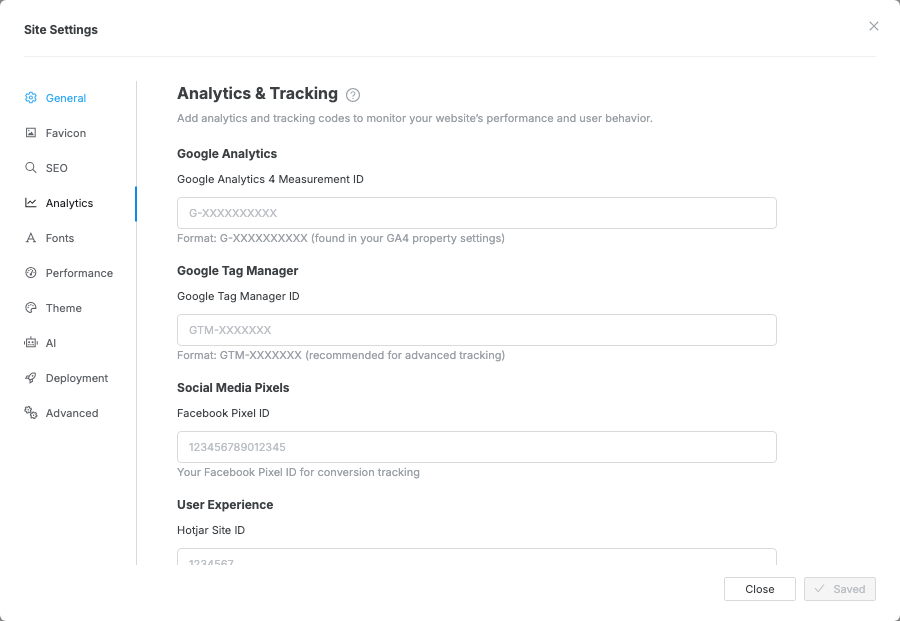
Supported integrations
Section titled “Supported integrations”| Provider | Field | Format |
|---|---|---|
| Google Analytics 4 | Google Analytics 4 Measurement ID | G-XXXXXXXXXX |
| Google Tag Manager | Google Tag Manager ID | GTM-XXXXXXX |
| Facebook Pixel | Facebook Pixel ID | numeric ID |
| Hotjar | Hotjar Site ID | numeric site ID |
| Any provider | Custom Analytics Code | Paste raw <script> tags |
Add Google Analytics
Section titled “Add Google Analytics”In your Google Analytics account, copy your Measurement ID (starts with
G-).- Open Settings → Analytics in Swebsy.
- Paste the ID into the Google Analytics 4 Measurement ID field.
- Click Save and close.
Analytics scripts are injected at export and deploy time. They do not run inside the Swebsy editor or editor Preview mode, so test tracking on the exported or deployed site.
Custom analytics
Section titled “Custom analytics”Paste any <script> tag (or raw tracking code) into the Custom analytics
field. It’s injected into <head> on every exported or deployed page.
If you use a strict Content Security Policy in Settings → Performance, add the analytics provider’s script and connection domains there too.
Analytics not firing — tracking only activates on your exported or deployed site. It won’t fire inside the Swebsy editor or Preview mode.
Double-tracking — if you’re also using Settings → Advanced → Custom <head> code to inject tracking, remove the duplicate so your events aren’t counted twice.