

Custom code
Swebsy lets you inject arbitrary code into the <head> or <body> of every page, and add global CSS and JavaScript.
Where to add custom code
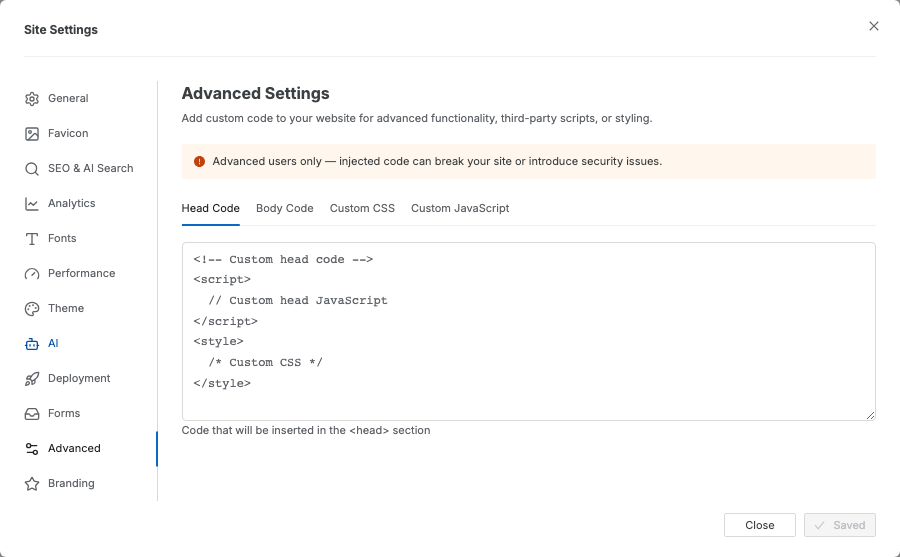
Section titled “Where to add custom code”Go to Settings → Advanced to access four code fields:
| Field | Where it’s injected |
|---|---|
Custom <head> code |
Inside <head> on every page |
Custom <body> code |
Just before </body> on every page |
| Custom CSS | Compiled with your site’s stylesheet |
| Custom JS | Bundled as a standalone script tag |
Example: add a third-party widget
Section titled “Example: add a third-party widget”- Open Settings → Advanced.
Paste the widget’s script tag into Custom head code or Custom body code — check the widget vendor’s instructions for which one to use.
- Click Save and close.
Custom CSS tips
Section titled “Custom CSS tips”- You can override any theme color or spacing value by name without touching the Theme panel.
- Styles apply to the whole page.
- Your custom CSS is applied after all built-in styles, so it wins in conflicts.
Custom JS tips
Section titled “Custom JS tips”- Your script runs after the page has fully loaded.
- You can target any element on the page using a class you added via the Design tab.
Script doesn’t run in the editor — custom scripts are only injected into the exported/deployed site, not the editing canvas. Use Preview mode to test.
Custom CSS isn’t taking effect — add !important after the value (e.g. color: red !important) to force it to override built-in styles.