

Progress bar
The Progress bar is a horizontal bar that fills to a percentage — use it for skill meters, funding goals, onboarding steps, loading states, and any “X of 100%” indicator. It adapts to your site’s theme colors automatically and is accessible by default (it renders with the correct role="progressbar" and ARIA value attributes).
Add a progress bar
Section titled “Add a progress bar”Open the Components tab (puzzle-piece icon) or the Blocks search.
- Find Progress bar under the Content category.
- Drag it onto the canvas and drop it where you want it.
Configure it
Section titled “Configure it”Select the bar and open the Settings tab. All options live there:
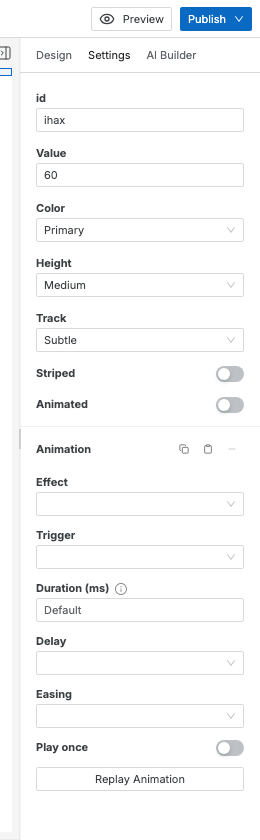
| Setting | What it does |
|---|---|
| Value | The fill percentage, 0–100. Values outside that range are clamped. |
| Color | The fill color: Primary, Secondary, Success, Warning, Danger, Info, or Neutral (grey). |
| Height | Bar thickness: Thin, Medium, Thick, or Thickest. |
| Track | The empty portion behind the fill — Subtle, Outlined, or Filled (see below). |
| Striped | Adds diagonal stripes to the fill. |
| Animated | Animates the stripes so they move. Turn on Striped as well for this to be visible. |
Track variants
Section titled “Track variants”The track is the unfilled part of the bar. Pick the one that reads best against your section background:
- Subtle — the default faint track. Best on plain backgrounds.
- Outlined — an outline in the fill color with a transparent center. Best on subtly tinted backgrounds where a faint track would disappear.
- Filled — a muted tint fills the whole track. Highest contrast.
Accessibility
Section titled “Accessibility”The bar exposes its value to screen readers automatically — the Value you set is written to aria-valuenow, with min 0 and max 100. You don’t need to add anything. To give the bar a more specific label, select it and edit the aria-label in the Settings tab.
The “Animated” toggle does nothing — animation only moves the stripes, so turn Striped on too.
The track is invisible on my background — switch the Track setting from Subtle to Outlined or Filled for more contrast.
The bar didn’t stop at my number — Value is clamped to 0–100. Anything higher shows as a full bar, anything lower as empty.